Can I Use MCP Servers Without Being a Developer?
You don’t need to write code to use MCP servers. You don’t need to understand APIs, protocols, or SDKs. If you can edit a text file and follow instructions, you can connect AI to your real tools in minutes.
Here’s exactly how — three methods, zero coding required.
The Short Answer
Yes, you can use MCP servers without being a developer. The setup involves editing a configuration file or running a single command. No programming skills needed.
| Method | Difficulty | Time to Set Up | Best For |
|---|---|---|---|
| Claude Desktop | Copy-paste a config block | 5-10 minutes | Non-technical users who want a GUI |
| Claude Code CLI | Run one command per server | 2-3 minutes | Anyone comfortable with a terminal |
| VS Code | GUI settings panel | 5-10 minutes | People already using VS Code |
Prerequisites (One-Time Setup)
Before installing MCP servers, you need two things on your computer. If you already have them, skip ahead.
Node.js
Most MCP servers are built with Node.js. Install it once and forget about it.
Mac:
# Open Terminal and run:
brew install node
Windows: Download from nodejs.org and run the installer. Choose the LTS version.
Verify it’s installed:
node --version
# Should show something like: v22.x.x
Python (Optional)
Some MCP servers use Python instead of Node.js. Install it if you encounter a Python-based server.
Mac:
brew install pythonWindows: Download from python.org. Check “Add to PATH” during installation.
That’s it for prerequisites. You won’t need to write any JavaScript or Python — these are just runtimes that MCP servers need to execute.
Method 1: Claude Desktop (GUI)
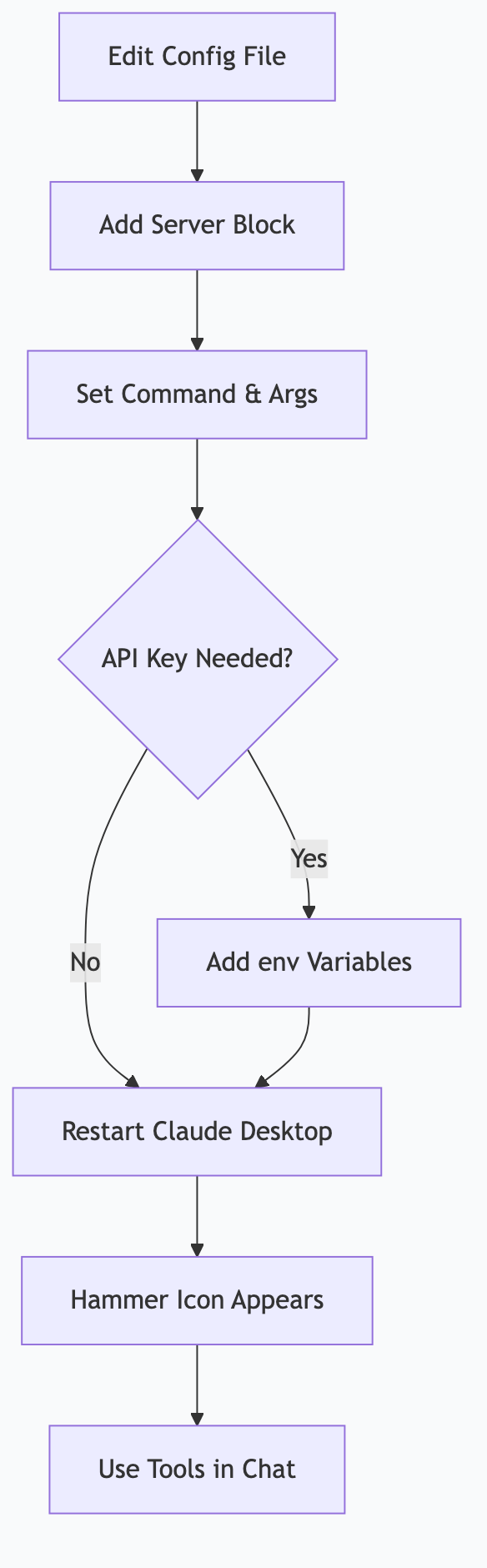
Claude Desktop is the easiest starting point. You edit one configuration file, restart Claude, and your MCP servers appear as tools.
Step 1: Find the Config File
Open Claude Desktop, then:
- Mac: Claude menu → Settings → Developer → Edit Config
- Windows: File → Settings → Developer → Edit Config
This opens claude_desktop_config.json in your text editor.
Step 2: Add an MCP Server
The config file has a mcpServers section. Each server gets a block. Here’s an example adding a web search server:
{
  "mcpServers": {
    "web-search": {
      "command": "npx",
      "args": ["-y", "@anthropic/mcp-server-web-search"],
      "env": {
        "BRAVE_API_KEY": "your-api-key-here"
      }
    }
  }
}
What each part means:
"web-search"— A name you choose (anything you want)"command"— How to run the server (npxfor Node.js servers)"args"— The server package name"env"— API keys or settings the server needs
Step 3: Add Multiple Servers
Stack them in the same config file:
{
  "mcpServers": {
    "web-search": {
      "command": "npx",
      "args": ["-y", "@anthropic/mcp-server-web-search"],
      "env": {
        "BRAVE_API_KEY": "your-key"
      }
    },
    "filesystem": {
      "command": "npx",
      "args": ["-y", "@modelcontextprotocol/server-filesystem", "/Users/you/Documents"]
    },
    "github": {
      "command": "npx",
      "args": ["-y", "@modelcontextprotocol/server-github"],
      "env": {
        "GITHUB_PERSONAL_ACCESS_TOKEN": "your-token"
      }
    }
  }
}
Step 4: Restart Claude Desktop
Close and reopen Claude Desktop. You should see a hammer icon showing your connected tools. Click it to see which tools each server provides.
Step 5: Use Them
Just talk to Claude normally:
- “Search the web for MCP server tutorials”
- “List the files in my Documents folder”
- “Show me my recent GitHub pull requests”
Claude automatically decides which MCP server tools to use based on your request.
Method 2: Claude Code CLI (Fastest)
If you use Claude Code (the terminal version), adding MCP servers is a single command.
Add a Server
claude mcp add web-search -- npx -y @anthropic/mcp-server-web-searchThat’s it. One command. The server is immediately available in your next Claude Code session.
Add With Environment Variables
claude mcp add github -- npx -y @modelcontextprotocol/server-github \
  --env GITHUB_PERSONAL_ACCESS_TOKEN=your-token
List Connected Servers
claude mcp listRemove a Server
claude mcp remove web-searchScoping
Claude Code lets you scope servers to specific projects:
# Available in all projects (global)
claude mcp add --scope global web-search -- npx -y @anthropic/mcp-server-web-search

# Available only in the current project
claude mcp add --scope project web-search -- npx -y @anthropic/mcp-server-web-search
Method 3: VS Code (GUI)
If you use VS Code with the Claude extension, MCP servers can be configured through the settings GUI.
Step 1: Open Settings
Cmd+, (Mac) or Ctrl+, (Windows) → Search for “MCP”
Step 2: Add Server Configuration
VS Code’s settings UI lets you add MCP server entries with fields for command, arguments, and environment variables. Same information as the JSON config, just in a form.
Step 3: Reload Window
Cmd+Shift+P → “Reload Window” to activate the new servers.
Finding MCP Servers to Install
Public Registries
| Registry | URL | Notes |
|---|---|---|
| Smithery | smithery.ai | Largest registry, reviews, install commands |
| mcpt | mcpt.ai | Curated, quality-focused |
| OpenTools | opentools.ai | Growing collection, search by category |
| npm | npmjs.com (search “mcp-server”) | Raw package listings |
How to Browse
- Go to a registry (start with Smithery)
- Browse categories: Productivity, Development, Data, Communication
- Click a server to see: description, required config, install command
- Copy the install command into your config file or CLI
Popular Servers for Non-Developers
| Server | What It Does | Config Complexity |
|---|---|---|
| Filesystem | Read/write files on your computer | Simple — just specify allowed directories |
| Web Search | Search the internet | Needs one API key (Brave) |
| Gmail | Read and draft emails | OAuth setup (guided) |
| Google Calendar | Check and create events | OAuth setup (guided) |
| Slack | Read and send messages | Bot token from Slack |
| Notion | Read and edit Notion pages | API key from Notion |
| GitHub | Manage repos, PRs, issues | Personal access token |
Real Setup Walkthrough: 3 Servers in 15 Minutes
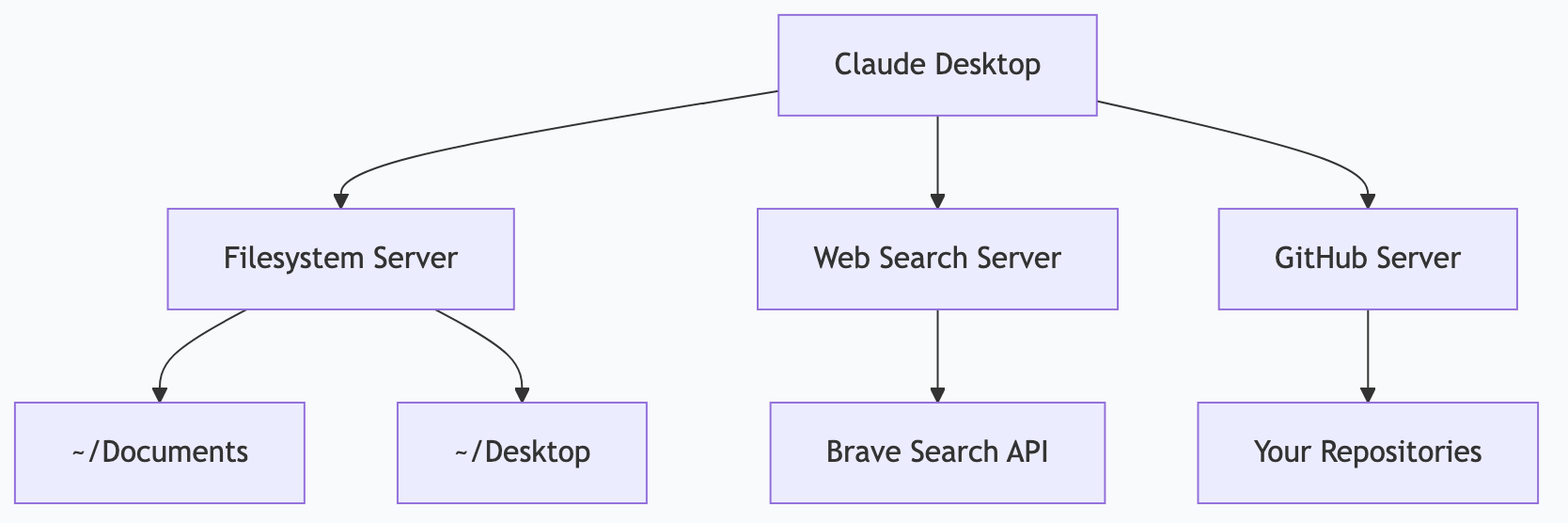
Let’s set up three useful MCP servers from scratch using Claude Code.
Server 1: Filesystem (2 minutes)
claude mcp add filesystem -- npx -y @modelcontextprotocol/server-filesystem ~/Documents ~/DesktopNow Claude can read and write files in your Documents and Desktop folders. Try:
- “List the files on my Desktop”
- “Read the contents of Documents/notes.txt”
- “Create a file called todo.txt on my Desktop with today’s tasks”
Server 2: Web Search (3 minutes)
- Get a free API key from brave.com/search/api
- Run:
claude mcp add web-search -- npx -y @anthropic/mcp-server-web-search \
  --env BRAVE_API_KEY=your-key-here
Now Claude can search the internet. Try:
- “Search for the latest news about MCP servers”
- “Find tutorials on Ollama setup”
Server 3: GitHub (5 minutes)
- Go to GitHub → Settings → Developer settings → Personal access tokens → Generate new token
- Select scopes:
repo,read:org - Run:
claude mcp add github -- npx -y @modelcontextprotocol/server-github \
  --env GITHUB_PERSONAL_ACCESS_TOKEN=your-token
Now Claude can interact with your GitHub repos. Try:
- “Show my open pull requests”
- “List issues in my project repo”
How I Actually Do This
I run about 15 MCP servers connected to Claude Code for daily work. Here’s my philosophy:
The Config File Approach
For Claude Desktop, I keep a curated config file that I’ve refined over months. New servers get tested individually before joining the main config — one bad server config can prevent Claude Desktop from loading any of them.
The CLI Approach
For Claude Code, I use claude mcp add for project-specific servers and global scope for universal ones:
# Global — available everywhere
claude mcp add --scope global web-search -- npx -y @anthropic/mcp-server-web-search
claude mcp add --scope global filesystem -- npx -y @modelcontextprotocol/server-filesystem ~

# Project-specific — only in this repo
claude mcp add github -- npx -y @modelcontextprotocol/server-github
What I’ve Learned
-
Start with 2-3 servers. File system + web search covers most needs. Add more only when you feel the gap.
-
Test one at a time. If you add 5 servers at once and something breaks, you won’t know which one caused it. Add one, verify it works, then add the next.
-
Keep API keys in environment variables. Never paste keys directly in config files that might be synced or shared. Use
.envfiles or your system’s keychain. -
Read the server docs. Each server has specific capabilities and limitations. A filesystem server configured with
~/Documentscan only access Documents — it can’t read your whole drive. That’s a feature, not a bug. -
The MCP ecosystem is growing fast. When I started, there were maybe 100 servers available. Now there are thousands. Check registries periodically — there might be a server for that tool you’ve been wishing Claude could access.
Troubleshooting
| Problem | Likely Cause | Fix |
|---|---|---|
| Server doesn’t appear in Claude | Config syntax error | Validate your JSON at jsonlint.com |
| ”Command not found” error | Node.js not installed | Install Node.js (see Prerequisites) |
| Server connects but tools don’t work | Missing API key or wrong permissions | Check the server’s documentation for required env variables |
| All servers stopped working | One server config is broken | Remove servers one at a time to find the broken one |
| Slow responses | Too many servers loaded | Remove servers you don’t use regularly |
Frequently Asked Questions
Is it safe to give MCP servers access to my files?
MCP servers only access what you explicitly allow. A filesystem server configured with ~/Documents cannot read your email, browser history, or other folders. Always scope access to the minimum needed directories.
Do MCP servers send my data to the cloud?
Not by default. MCP servers run locally on your machine. Data only leaves your computer if the server explicitly calls an external API (like web search or Gmail). Local-only servers like filesystem never send data anywhere.
Can I use MCP servers on my phone?
Not directly — MCP servers currently run on desktop/laptop computers. However, if you set up servers on a home computer, you can access them remotely through tools like Claude Code over SSH or a web-based interface like Open WebUI.
What happens if an MCP server crashes?
Claude continues working — it just loses access to that server’s tools. Other servers remain connected. Restart the crashed server by restarting Claude Desktop or running claude mcp restart in Claude Code.
Do I need to update MCP servers?
Occasionally. Servers installed via npx automatically use the latest version. Servers installed globally with npm install -g need manual updates with npm update -g. Check for updates monthly.
This is part of the ASTGL Definitive Answers series — structured, practical answers to the questions people actually ask about AI automation, MCP servers, and local AI infrastructure.
Related Articles
Get the full Definitive Answers series
Practical answers to the questions people actually ask about AI automation, MCP servers, and local AI infrastructure.
Subscribe on Substack